
InnoCaption Live Call Captions
Mezmo CorporationCommunication
4.32.04K Reviews
- Version
- 4.5.0
- Installs
- 1.00M
- Age Rating
- Everyone
Screenshots
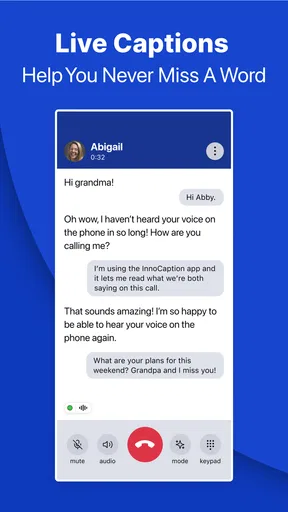

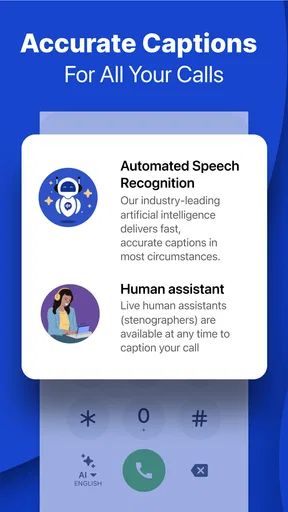
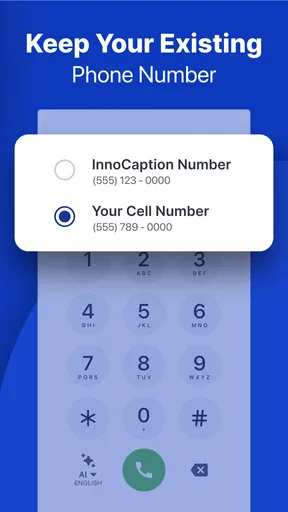
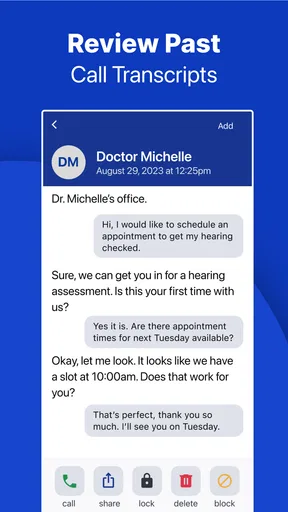
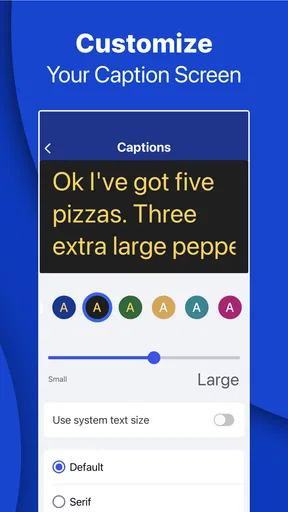
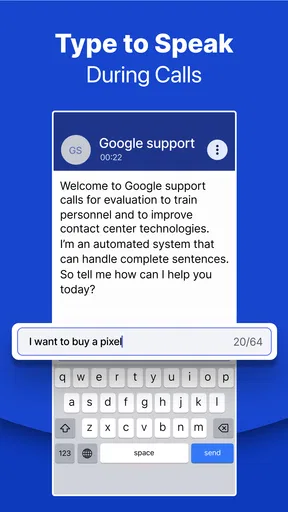
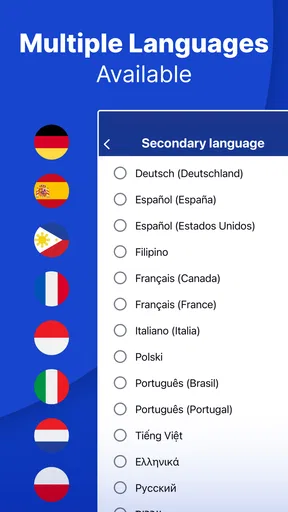
Our Review of InnoCaption Live Call Captions
 Analysis by Appyee
I approached InnoCaption Live Call Captions as a practical communication app rather than another general-purpose calling tool. Its purpose is straightforward: it helps turn spoken phone conversations into readable captions, which can make calls easier for people who are deaf, hard of hearing, use hearing aids, or simply find speech difficult to follow in certain situations. After spending time with the app, my impression is that its value comes from reducing the pressure of trying to catch every word in real time.
That focus makes it different from ordinary messaging apps and from the accessibility captions built into some phones. Those alternatives can be useful, but they are not always designed around the rhythm of a live telephone conversation. InnoCaption is built around that specific moment when another person is speaking and I need a visual aid without abandoning the call itself. It is free, carries an Everyone age rating, and comes from Mezmo Corporation.
The app has been available since June 20, 2018, and its current version is 4.5.0. It has passed one million installs, with an average rating of 4.3 from roughly 6.9 thousand ratings and about 2 thousand written reviews. Those figures suggest that it has found a real audience, but they do not remove the need to understand how it fits into a person’s daily routine. Captioning is useful only when it is comfortable, readable, and dependable enough for the situations in which a user actually needs it.
What to expect before making a call
The first thing I would tell a new user is to think of InnoCaption as a communication aid, not as a replacement for every part of a phone. Its central experience is the live conversion of a call into text. That means the app is most useful when the main difficulty is following spoken language, especially during conversations where asking someone to repeat themselves over and over becomes tiring or awkward.
A first-time user should also expect a little adjustment. Reading and listening at the same time is not identical to reading a message. The captions arrive as the conversation moves, so I found that the most useful habit is to glance at the text for confirmation rather than stare at every word. When the speaker talks quickly, changes direction, or uses an unfamiliar name, the written line can give me the missing piece before I lose the thread.
This is particularly helpful for calls involving details. A delivery arrangement, appointment time, address, customer-service instruction, or family update can be easier to follow when I have text to support what I hear. The benefit is not only accuracy; it is confidence. I am less likely to nod along while secretly wondering whether I misunderstood an important sentence.
InnoCaption also makes sense for people whose hearing varies with the environment. A quiet room and a noisy café are not equivalent, and neither is a clear speaker and someone using a weak mobile connection. The app cannot make every conversation perfect, but captions provide another route into the exchange when sound alone is unreliable.
There is an important trade-off here. A captioning app is not the best choice for someone who wants a full text archive of every conversation, a group-chat platform, or a general video-meeting service. Its appeal is narrower and more practical. If I only need occasional written support during calls, that focused approach can feel reassuring. If I want a broad communications suite, I would look elsewhere.
Who is likely to benefit most
I see the strongest fit for people who are deaf or hard of hearing, people who use hearing aids and still struggle with certain callers, and anyone who experiences inconsistent speech comprehension. It can also be useful for a family member helping someone become more comfortable with phone calls. Instead of taking over the conversation, the helper can encourage the user to rely on the captions as a second channel.
Another good use is preparing for calls that matter. Before speaking with a clinic, utility company, school, bank, or service provider, I would open the app early and make sure I am settled. The captions are most valuable when I am not rushing through setup while the other person is already waiting. That small change turns the app from an emergency tool into part of a repeatable routine.
On the other hand, I would not recommend choosing it solely because a general phone app feels inconvenient. Someone who hears conversations clearly and only wants automatic transcripts for later reference may prefer a note-taking or recording workflow instead. Someone who mainly communicates by text may gain more from a messaging app. InnoCaption earns its place when live spoken calls are the problem to solve.
Getting through the first setup without guesswork
My advice is to install the app when you have a few quiet minutes, not immediately before an important call. The first session should be treated as a short orientation. Look through the call experience, identify where captions appear, and become familiar with the reading area before you need to concentrate on the other person’s words.
Because this is a communication app, the most important setup question is not whether it looks attractive; it is whether the text is easy for you to follow. I would adjust my phone’s general display settings if the writing feels too small or crowded, then test the result in the way I expect to use it. A comfortable reading position matters more than a quick installation.
It is also worth deciding where the phone will sit during a call. Holding it at an awkward angle while trying to listen and read creates unnecessary strain. A stable position lets me glance at the captions naturally and keeps the conversation feeling more like a normal call. For hearing-aid users, this is a good moment to choose the arrangement that produces the clearest combination of sound and text rather than assuming one channel must do everything.
I would begin with a trusted person who understands that this is a test. Ask them to speak normally, then repeat a few phrases at a faster pace, include a name, and change topics. That reveals more than a simple “Can you hear me?” A realistic trial helps me notice whether I tend to rely on audio, captions, or both, and it shows where I need to slow down.
One of the less obvious benefits of this trial is that it can expose a personal reading habit. Some people need only occasional confirmation, while others need to watch the text closely. Neither approach is wrong, but knowing which one feels natural makes later calls less stressful. I would not judge the app after a single sentence; I would judge whether it helps me recover when a sentence becomes difficult.
The first meaningful success
The first successful action should be a short, ordinary call rather than a high-pressure conversation. I would call someone I know, explain that I am testing live captions, and ask them to discuss something familiar. The goal is to complete a small exchange: ask a question, understand the answer, and respond without repeatedly stopping the conversation.
That test is more useful than simply seeing words appear on the screen. A captioning tool succeeds when it helps me participate. During the call, I would pay attention to three things: whether I can follow the general meaning, whether I can catch important details, and whether looking at the text makes my responses more natural or more delayed.
A realistic example would be arranging a grocery pickup with a family member. The other person might mention a substitute item, a collection time, and a change to the meeting place. I can listen for the overall message while using the captions to confirm the details. If I miss one part, I can ask a focused question instead of saying that I missed the entire explanation.
That is where I found the app’s practical strength. Captions can change the shape of a conversation from constant repair to occasional clarification. I still need to communicate, and I still need to ask for repetition when necessary, but the visual support gives me a better chance of identifying exactly what went wrong.
For a first important call, I would write down the key information I expect to receive before dialing. This is not because the app replaces memory or notes; it is because a prepared checklist helps me verify that I understood the conversation. For an appointment, that might mean the day, time, location, and any instruction I need to remember. Captions make those details easier to catch, while the checklist keeps me from assuming that “mostly understood” is good enough.
Common points of confusion
The biggest misunderstanding is expecting captions to behave like a perfectly edited transcript. Live speech is messy. People interrupt one another, mumble, use names or technical terms, and change their minds halfway through a sentence. A caption can support understanding without making every word flawless. I treat it as real-time assistance, not as a guarantee that the text will always be complete or polished.
Another common confusion is believing that captions remove the need for good call habits. They do not. A speaker who talks extremely fast, covers the microphone, or speaks in a noisy place can make any communication method harder. I get better results when I ask the other person to pause between ideas, spell an unfamiliar name, or repeat only the part that was unclear.
It is also easy to watch the text too intensely. When I focus on every line, I can lose the emotional rhythm of the conversation and respond late. A better workflow is to listen first when I can, glance down when a phrase is uncertain, and use the captions to confirm information. This balanced approach is especially helpful in personal calls, where tone and timing matter as much as the literal words.
Some users may wonder whether the app is suitable for every kind of phone conversation. I would be selective. It is a strong candidate for one-to-one calls where following speech is the main challenge. I would be more cautious about relying on it for rapid multi-person exchanges or situations where missing a single specialized term could have serious consequences. In those cases, I would combine the captions with written notes, a follow-up message, or another person’s confirmation.
Privacy-minded users may also want to think about the setting before discussing sensitive subjects. I would avoid treating any live captioning tool as a substitute for understanding how a particular service handles communications. For routine conversations, the app can be convenient. For confidential matters, I would first make sure its use fits my own comfort level and the expectations of everyone involved.
Building a dependable calling routine
Once the first test works, the next step is consistency. I would keep the app available for the calls where I already know I struggle, rather than opening it randomly and hoping it helps. That might include calls from unfamiliar numbers, conversations with people whose voices are difficult for me to distinguish, or discussions involving several pieces of information.
A useful routine is to prepare three minutes before the call. Find a quiet place, position the phone so the captions are easy to see, keep a pen or note app nearby, and decide what outcome I need from the conversation. This preparation does not make the app more powerful, but it makes its assistance easier to use. The difference between a calm setup and a rushed one is noticeable.
I would also create a personal recovery method for moments when the conversation becomes unclear. Rather than saying only “What?”, I can ask, “Did you say Tuesday or Thursday?” or “Could you repeat the address?” The captions often help me form that specific question. This is one of the most valuable workflows because it turns a vague hearing problem into a precise correction.
For recurring calls, I would compare my experience over time instead of judging one difficult conversation. A speaker’s accent, background noise, and connection quality can all influence the result. If the app helps me complete routine conversations with fewer misunderstandings, that is a meaningful success even if it does not perform identically in every environment.
There is no need to force the app into calls where it adds work. If I am speaking with someone face to face, already communicating by text, or in a conversation that moves too quickly for comfortable reading, another method may be better. Good accessibility tools should give me options, not create a new obligation.
How it compares with familiar alternatives
The usual alternative is simply using the phone’s audio. That is effortless when hearing is clear, but it offers no visual backup when a word disappears into background noise or an unfamiliar voice. InnoCaption’s advantage is that it addresses the specific weakness of audio-only calling.
Text messaging is often clearer because it begins in writing, but it changes the pace and character of communication. A call is still preferable when I need an immediate answer, a warmer personal exchange, or a conversation that would take too long to type. Live captions occupy a useful middle ground: I keep the immediacy of speech while gaining readable support.
Built-in accessibility features on a phone may be enough for some people, especially if their needs are occasional and their device already handles the relevant situation well. InnoCaption is more appealing when the central goal is captioned phone communication and I want an experience organized around that purpose. The trade-off is that a focused app becomes another tool to learn and maintain.
Video calls with automatic captions can help when everyone is already comfortable meeting on camera, but they are not a direct substitute for a normal phone conversation. Many everyday calls happen without video, and some people do not want to be on camera. InnoCaption makes more sense when I want the call format to remain simple while adding text support.
For someone deciding between this app and a text-first service, I would ask one question: do I want to hear and speak in real time, or do I mainly want to exchange written messages? If the answer is the former and hearing clarity is the barrier, this app is worth trying. If the answer is the latter, captions may be an unnecessary extra layer.
My recommendation after using it
I recommend InnoCaption to first-time users who want a more manageable way to follow live phone calls. Its strongest quality is not that it makes every conversation effortless; it gives me a practical second path to the meaning of a spoken exchange. That can reduce fatigue, improve confidence, and make important calls feel less intimidating.
The free price removes an obvious barrier to testing it, and the Everyone rating makes it approachable for a broad audience. Mezmo Corporation has kept the app focused on communication rather than surrounding the core purpose with unrelated features. The result is most convincing when I use it deliberately: prepare for the call, read naturally, ask targeted questions, and use notes for details that matter.
I would skip it if I rarely make phone calls, already follow spoken conversations comfortably, or need a full transcription and document-management system rather than live assistance. I would also avoid making it my only safeguard for highly technical or consequential conversations. In those situations, captions should support a broader plan, not replace confirmation.
For everyone else, my suggestion is simple: start with a trusted person, make a short test call, and measure success by whether you can understand and respond—not by whether every caption looks perfect. If that first experience helps you complete a normal conversation with less strain, keep the app ready for the calls that usually cause trouble. The real win is not reading more text; it is taking part in the conversation with greater control.
Verdict
Strengths of InnoCaption Live Call Captions
- Provides real-time captions for phone calls, improving accessibility.
- Supports calls with familiar phone features and a straightforward interface.
- Can help users follow conversations in noisy environments.
- Useful for people with hearing loss or difficulty understanding speech.
- Caption history can make important details easier to review later.
Limitations of InnoCaption Live Call Captions
- Caption accuracy may drop with accents, background noise, or fast speech.
- Requires an internet connection and may use mobile data during calls.
- Availability and features can vary by country and mobile carrier.
- Some callers may feel uncomfortable knowing the call is captioned.
- Battery usage may increase during longer calls with live transcription.
Similar Picks in This Category
View All
Google Messages
Google LLC4.6

Gmail
Google LLC4.1

Google Meet
Google LLC4.4

Google Chrome
Google LLC4.1

WhatsApp Messenger
WhatsApp LLC4.6

Carrier Services
Google LLC4.2
Frequently Asked Questions
What is InnoCaption Live Call Captions and who is it designed for?
InnoCaption is a mobile captioned-calling service designed primarily for people who are deaf or hard of hearing and need assistance understanding phone conversations. It provides live captions while you speak with another person, helping you follow the conversation more easily. The app is intended for eligible users in the United States and may require registration or verification before all calling features become available.
How accurate are the captions during a phone call?
Caption accuracy can be quite good in clear, everyday conversations, but it is not guaranteed to be perfect. Performance may change depending on the speaker’s pronunciation, background noise, connection quality, speaking speed, accents, and the use of technical or uncommon terms. InnoCaption may use automated speech recognition and, where available, additional captioning support, so users should still confirm important details such as addresses, numbers, appointments, or financial information.
Does InnoCaption work with my existing phone number and contacts?
InnoCaption is built to help users make and receive captioned calls through the service, but the exact setup depends on the account and calling options available in the app. During installation, users may need to choose or transfer a number, configure call preferences, and grant access to contacts or the phone. It is best to review the number-transfer and incoming-call instructions carefully before replacing your regular calling method.
Is InnoCaption free to download and use?
The application may be available to download without a normal purchase price, but access to captioned calling is subject to eligibility requirements and service conditions. InnoCaption is associated with a federally funded telecommunications relay service for qualified users in the United States, so users should check the current requirements, privacy information, and terms during registration. Mobile data, Wi-Fi usage, and standard carrier charges may still apply.
What permissions and internet connection does the app require?
To provide captioned calls, InnoCaption may request access to the microphone, phone functions, notifications, contacts, and other device features depending on how you use it. A reliable Wi-Fi or mobile-data connection is important because captions and call routing depend on network communication. Before downloading, make sure your device runs a supported Android or iOS version, keep the app updated, and review permissions so they match the features you intend to use.
